
AS12 + RealTurb Configuration
- Thread starter maorgr
- Start date

Alan Metcalf
Member
FS2024: Set turbulence to LOW. Enable wake turbulence (the effect), but turn off the blue visualization (Alt+5) unless you want to see it.
ASFS: Use Active mode for better clouds (or Passive if you prefer MSFS visuals). Smoothing rate ~20. Leave most settings default; you can lower CAT/cloud turbulence to avoid overlap.
RealTurb: Terrain turbulence 100%, cloud + CAT to 20% (minimum). Sounds off or low.
This combo works well together — ASFS for weather, RealTurb for the extra realistic bumps (especially terrain). Start there and tweak one thing at a time.
ASFS: Use Active mode for better clouds (or Passive if you prefer MSFS visuals). Smoothing rate ~20. Leave most settings default; you can lower CAT/cloud turbulence to avoid overlap.
RealTurb: Terrain turbulence 100%, cloud + CAT to 20% (minimum). Sounds off or low.
This combo works well together — ASFS for weather, RealTurb for the extra realistic bumps (especially terrain). Start there and tweak one thing at a time.
Alan Metcalf
Member
This is expected behavior rather than a unique ASFS bug. It behaves the same for me.
ASFS is a standalone Windows app that talks to the sim via its connector. The in-sim toolbar button (added in later updates) is just a convenience launcher — it starts the desktop ASFS application. That process is independent of FlightSimulator.exe, so it stays open after you quit FS2024. Steam then often still shows the sim as running because leftover processes haven’t terminated.
Simply go into Task Manager and close it.
Preferred workflow: Launch ASFS from its desktop shortcut before starting FS2024 and let it connect automatically. Don’t use the in-sim toolbar to start it.
ASFS is a standalone Windows app that talks to the sim via its connector. The in-sim toolbar button (added in later updates) is just a convenience launcher — it starts the desktop ASFS application. That process is independent of FlightSimulator.exe, so it stays open after you quit FS2024. Steam then often still shows the sim as running because leftover processes haven’t terminated.
Simply go into Task Manager and close it.
Preferred workflow: Launch ASFS from its desktop shortcut before starting FS2024 and let it connect automatically. Don’t use the in-sim toolbar to start it.

The button on the Toolbar is to bring the ASFS GUI forward. It is not to start and stop ASFS.Thank you so much.
One last question - when I load AS via FS2024 bar, AS will not close when I exit from FS2024, making it still run on steam. Is it a known issue? if not, how can I remedy this?
glidescope
New member
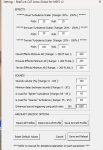
thanks. I also have RealTurb and will try this. Can you confirm these settings below are what you meanFS2024: Set turbulence to LOW. Enable wake turbulence (the effect), but turn off the blue visualization (Alt+5) unless you want to see it.
ASFS: Use Active mode for better clouds (or Passive if you prefer MSFS visuals). Smoothing rate ~20. Leave most settings default; you can lower CAT/cloud turbulence to avoid overlap.
RealTurb: Terrain turbulence 100%, cloud + CAT to 20% (minimum). Sounds off or low.
This combo works well together — ASFS for weather, RealTurb for the extra realistic bumps (especially terrain). Start there and tweak one thing at a time.
https://i.postimg.cc/zB0Nfkp3/Screenshot-2026-08-23-142435.jpg
a silly question... in ms2024 settings under "online" you tick live weather on or off when using activesky 2024 ? thank you
Attachments
-
 74.2 KB Views: 6
Last edited:
Alan Metcalf
Member
Correct startup order & settings:
Turbulence settings (to avoid overlap):
MSFS 2024
ActiveSky
RealTurb
- Start ActiveSky first (Active mode)
- Then start MSFS
- In MSFS:
- Set weather preset to Clear Skies
- Turn Live Weather OFF (Options → General → Online)
Turbulence settings (to avoid overlap):
MSFS 2024
- Turbulence: LOW
- Wake turbulence effect: ON
- Blue visualization (Alt+5): OFF (optional)
ActiveSky
- Mode: Active
- Smoothing rate: ~20
- CAT / cloud turbulence: leave default or lower slightly if needed
RealTurb
- Terrain: 100%
- Cloud + CAT: 20% (minimum)
- Sounds: OFF or low